· Desktop Chrome
HyperOrganic homepage and brand onboarding
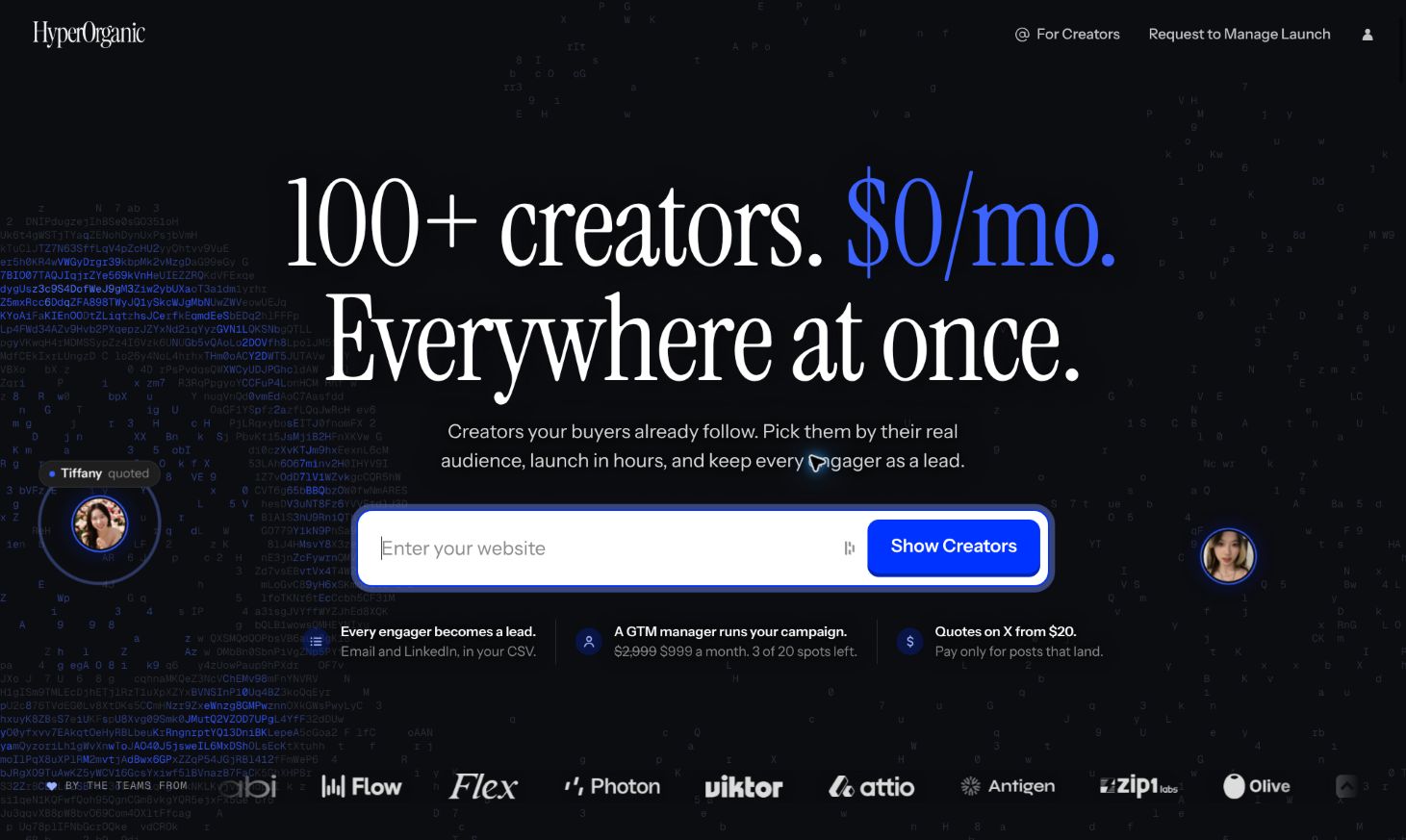
HyperOrganic promotes coordinated launches on X, creator selection based on audience and replies, and contact exports from engagement. A company website drives both creator discovery on the homepage and background research during onboarding.
Homepage
- Positioning
- The hero advertises 100+ creators and $0 per month. The main action, Show Creators, asks for a website. Nearby copy promises launches in hours, X quotes from $20, and CSV exports with email and LinkedIn details for people who engage.
- Social proof
- Animated X-style activity frames the hero. A logo strip references teams from OpenArt, Wispr Flow, Flex, Attio, and others.
- Campaign mechanics
- Set the idea, budget, and launch time, then review bids and counteroffers. The selected creators quote the same post on schedule. The page lists reminders at 12 hours, 6 hours, 1 hour, and 5 minutes before launch.
- Product previews
- Examples show follower demographics, recent commenters, reposts versus quotes versus sponsored posts, and an order thread that draws from a shared balance. Friends can receive a launch-day calendar invite through a free share link.
- Pricing
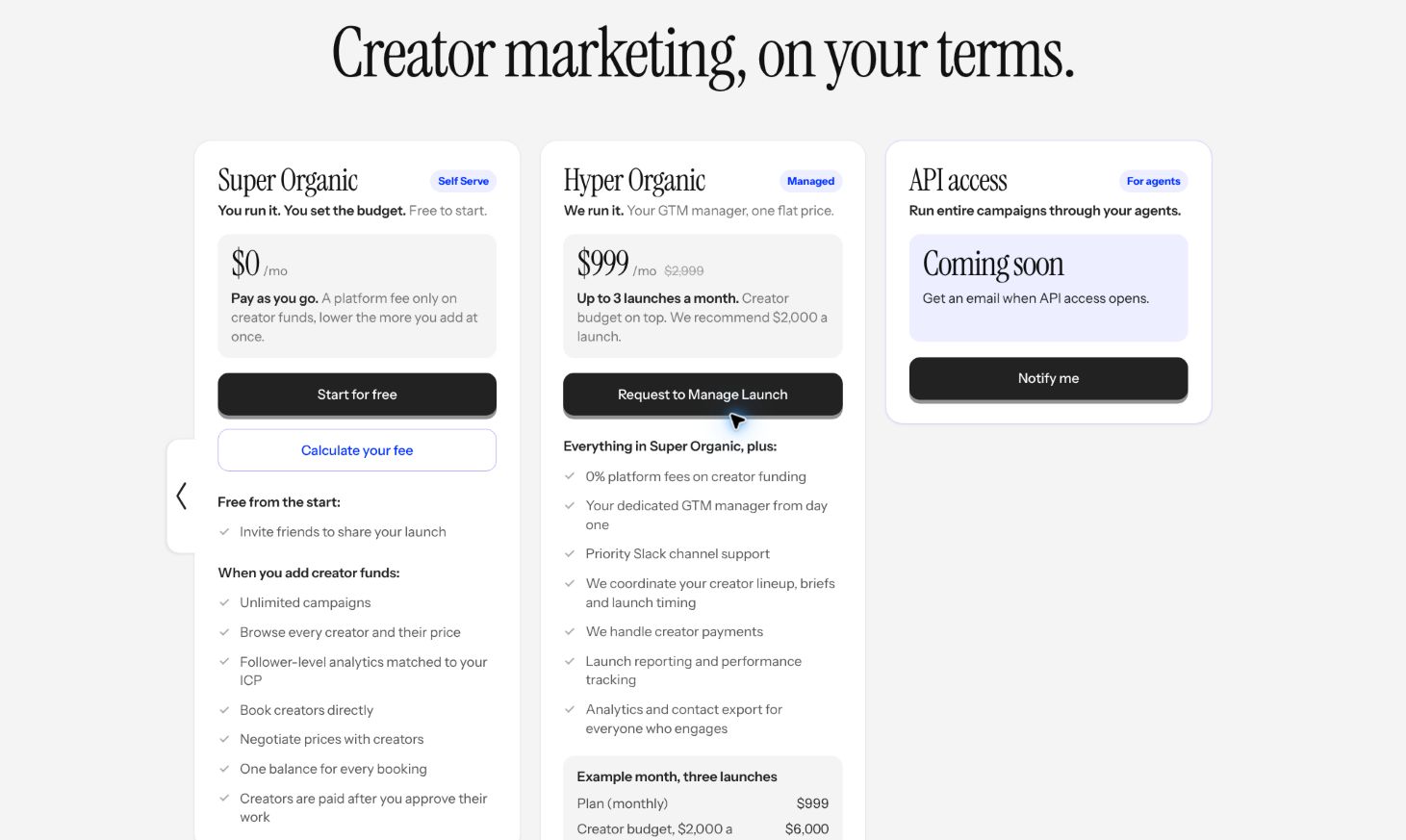
- Self-serve starts at $0 per month and charges a platform fee on creator funds. Friend invites are free. The managed plan displayed $999 per month, regularly $2,999, for up to three launches with creator spend billed separately. Its sample month totals $6,999. API access is marked coming soon.
- Entry points
- Start for free returns focus to the website input. Sign in opens signup directly. Creators have a separate site, and managed launches have their own request flow.
Brand signup and account setup
Choose a sign-in method
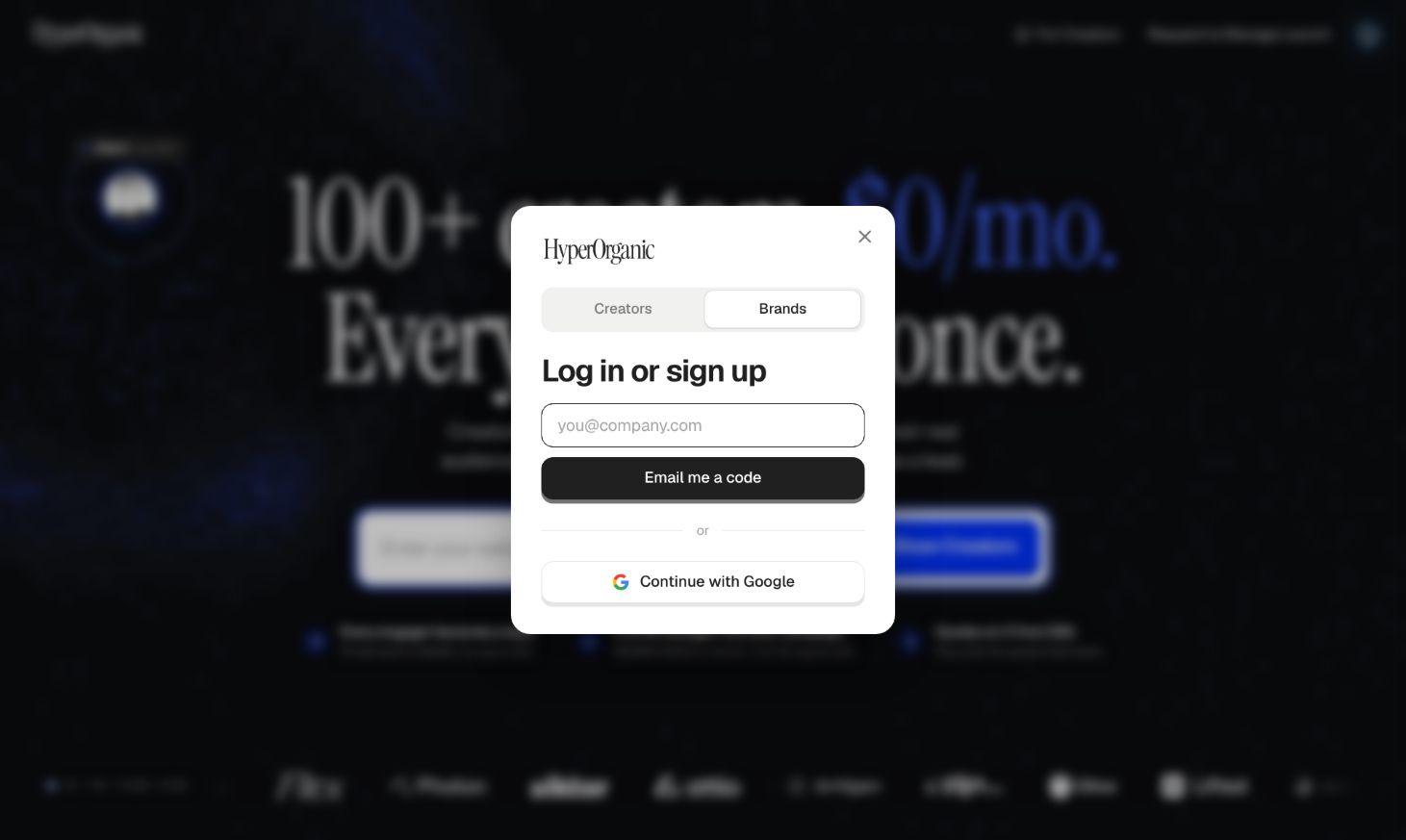
The combined login and signup dialog defaults to Brands and offers a Creators toggle. Brands can request an email code or continue with Google.
Authenticate
The in-app browser reached a passkey prompt. Chrome showed a connection error on the first attempt, and the retry reached Google consent for name, profile picture, and email. The authenticated welcome screen offered Get started.
Confirm the profile
Google supplied the first name and read-only email address. The last name was optional.
Add the company website
The app looked up the submitted website, displayed the matched company, and enabled Continue.
Land in Campaigns
The workspace opened with Your first campaign, a New campaign action, an empty activity feed, and cards about briefing, finding creators, and sharing. The sidebar also exposed Creators, Orders, Inbox, Payments, and GTM manager.
Review company research
A progress indicator opened a review while the app filled in the company overview, audiences, topics, and competitors. The completed example included four audiences, five topics, and four suggested competitors. The editor showed positioning and voice, per-section sources, and controls to edit entries.
Return to the workspace
Continue closed the company review and returned to Campaigns, where the account was ready for a first campaign.
Competitive observations
- The homepage gives the first input an immediate purpose. The website is framed as the way to see relevant creators, and the same input gives the app company context during setup.
- Research happens alongside workspace access. Its progress is visible, and customers can review or edit the results as they arrive or return later.
- The empty dashboard is organized around a first campaign. It pairs a single primary action with a short explanation and leaves operational tools in the sidebar.